eLearn
  • Home
  • Calendar
  • Schools
    APPLIED BUSINESS
    ARCHITECTURE
    BRIDGEPOINT
    BUILDING CONSTRUCTION
    CIVIL ENGINEERING AND LAND SURVEYING
    COMMUNITY STUDIES
    COMPUTING, ELECTRICAL AND APPLIED TECHNOLOGY
    CREATIVE INDUSTRIES
    ENVIRONMENTAL AND ANIMAL SCIENCES
    HEALTHCARE AND SOCIAL PRACTICE
    TRADES AND SERVICES
    Tuapapa Rangahau and Postgraduate Resources
    Unitec Pathways College
    All departments
  • Students
    ONLINE TOOLS MyPortfolio guide MyUnitec Portal Student Email Outlook Ask IMS Ask IMS orientation
    STUDY SUPPORT ACADEMIC INTEGRITY Library International Maia Maori Student Central (Te Pae Korero) Student Learning and Achievement Study Toolbox The Pacific Centre
    OTHER SERVICES Career and Study Options CAREER & EMPLOYABILITY Clubs and Sports Health and Safety Reporting Counselling Services Student Reps Student Advocates Scholarships and Awards
  • Staff
    ELEARNING AI Literacy for Learners Generative AI for Teachers Digital Learning Standards Echo 360 Flexible L&T H5P Interactive Activities MyPortfolio SEAtS Staff Guide to Moodle Zoom for Teachers
    OTHER Academic Quality Badges (Teaching Competencies) Collaborative Spaces Moodle role induction Request a new Moodle course Te Rito Suite
  • More
Site-wide search Close
Toggle search input
English ‎(en)‎
Afrikaans ‎(af)‎ Deutsch ‎(de)‎ English ‎(en)‎ Español - Internacional ‎(es)‎ Filipino ‎(fil)‎ Français ‎(fr)‎ Māori Te Reo ‎(mi)‎ Tagalog ‎(tl)‎
You are currently using guest access
Log in
eLearn
Home Calendar Schools Collapse Expand
APPLIED BUSINESS ARCHITECTURE BRIDGEPOINT BUILDING CONSTRUCTION CIVIL ENGINEERING AND LAND SURVEYING COMMUNITY STUDIES COMPUTING, ELECTRICAL AND APPLIED TECHNOLOGY CREATIVE INDUSTRIES ENVIRONMENTAL AND ANIMAL SCIENCES HEALTHCARE AND SOCIAL PRACTICE TRADES AND SERVICES Tuapapa Rangahau and Postgraduate Resources Unitec Pathways College All departments
Students Collapse Expand
ONLINE TOOLS MyPortfolio guide MyUnitec Portal Student Email Outlook Ask IMS Ask IMS orientation STUDY SUPPORT ACADEMIC INTEGRITY Library International Maia Maori Student Central (Te Pae Korero) Student Learning and Achievement Study Toolbox The Pacific Centre OTHER SERVICES Career and Study Options CAREER & EMPLOYABILITY Clubs and Sports Health and Safety Reporting Counselling Services Student Reps Student Advocates Scholarships and Awards
Staff Collapse Expand
ELEARNING AI Literacy for Learners Generative AI for Teachers Digital Learning Standards Echo 360 Flexible L&T H5P Interactive Activities MyPortfolio SEAtS Staff Guide to Moodle Zoom for Teachers OTHER Academic Quality Badges (Teaching Competencies) Collaborative Spaces Moodle role induction Request a new Moodle course Te Rito Suite

Guide to Moodle

Back

Activities

These are the interactive parts of your course, and allow students (and teachers) to do things.

To add a new activity to your course you must first turn editing on

Turn editing on

Note: There are now two methods for adding activities and resources to course pages, you may either use the traditional Add activity or resource link or the new Activity chooser. 

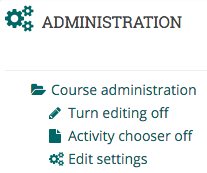
Check the Administration block to see if you have the Activity chooser turned on or off. You may turn the chooser on or off by clicking on the entry within the Administration block.

Activity chooser off


Add an activity using the Add activity or resource link

Note: To use this method the Activity chooser must be turned offActivity chooser off

Scroll to the bottom of the section where you wish to add the activity and click the Add activity or resource link near the bottom.

add an activity or resource (link)

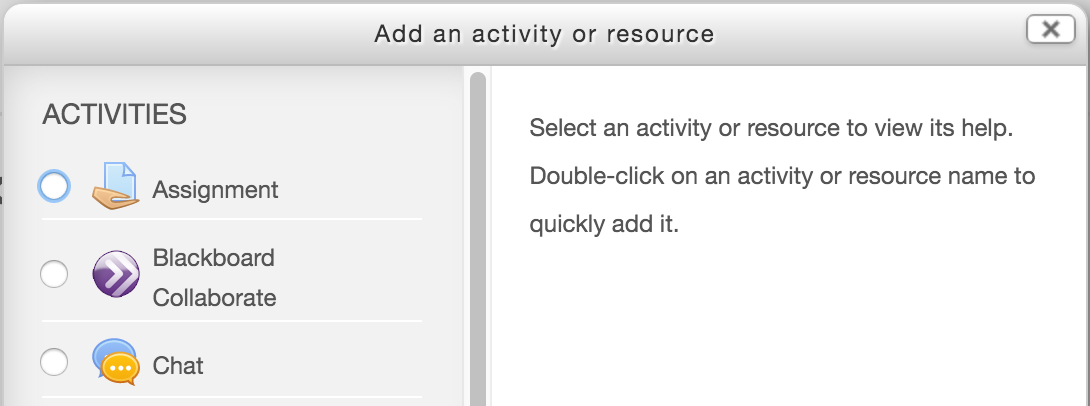
The Add an activity or resource window will appear. Select the type of activity you wish to add and click the Add button, otherwise click Cancel to return to your course page.

Add an activity or resource (window)


Add an activity using the Activity chooser

Note: To use this method the Activity chooser must be turned onActivity chooser on

When enabled the Activity chooser replaces the Add activity or resource link described above with two drop down boxes one for resources and one for activities.

Activity chooser

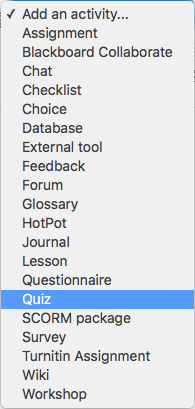
Scroll to the bottom of the section where you wish to add the activity and click the Add and activity drop down menu. Click on the activity type you wish to add from the list that appears.

Activity chooser menu

This page describes the process of adding activities to your course page, however, the process of adding resources is essentially the same.

» Guide to Moodle

Contact site support
You are currently using guest access (Log in)
Data retention summary
Powered by Moodle