eLearn
  • Home
  • Calendar
  • Schools
    APPLIED BUSINESS
    ARCHITECTURE
    BRIDGEPOINT
    BUILDING CONSTRUCTION
    CIVIL ENGINEERING AND LAND SURVEYING
    COMMUNITY STUDIES
    COMPUTING, ELECTRICAL AND APPLIED TECHNOLOGY
    CREATIVE INDUSTRIES
    ENVIRONMENTAL AND ANIMAL SCIENCES
    HEALTHCARE AND SOCIAL PRACTICE
    TRADES AND SERVICES
    Tuapapa Rangahau and Postgraduate Resources
    Unitec Pathways College
    All departments
  • Students
    ONLINE TOOLS MyPortfolio guide MyUnitec Portal Student Email Outlook Ask IMS Ask IMS orientation
    STUDY SUPPORT ACADEMIC INTEGRITY Library International Maia Maori Student Central (Te Pae Korero) Student Learning and Achievement Study Toolbox The Pacific Centre
    OTHER SERVICES Career and Study Options CAREER & EMPLOYABILITY Clubs and Sports Health and Safety Reporting Counselling Services Student Reps Student Advocates Scholarships and Awards
  • Staff
    ELEARNING AI Literacy for Learners Generative AI for Teachers Digital Learning Standards Echo 360 Flexible L&T H5P Interactive Activities MyPortfolio SEAtS Staff Guide to Moodle Zoom for Teachers
    OTHER Academic Quality Badges (Teaching Competencies) Collaborative Spaces Moodle role induction Request a new Moodle course Te Rito Suite
  • More
Site-wide search Close
Toggle search input
English ‎(en)‎
Afrikaans ‎(af)‎ Deutsch ‎(de)‎ English ‎(en)‎ Español - Internacional ‎(es)‎ Filipino ‎(fil)‎ Français ‎(fr)‎ Māori Te Reo ‎(mi)‎ Tagalog ‎(tl)‎
You are currently using guest access
Log in
eLearn
Home Calendar Schools Collapse Expand
APPLIED BUSINESS ARCHITECTURE BRIDGEPOINT BUILDING CONSTRUCTION CIVIL ENGINEERING AND LAND SURVEYING COMMUNITY STUDIES COMPUTING, ELECTRICAL AND APPLIED TECHNOLOGY CREATIVE INDUSTRIES ENVIRONMENTAL AND ANIMAL SCIENCES HEALTHCARE AND SOCIAL PRACTICE TRADES AND SERVICES Tuapapa Rangahau and Postgraduate Resources Unitec Pathways College All departments
Students Collapse Expand
ONLINE TOOLS MyPortfolio guide MyUnitec Portal Student Email Outlook Ask IMS Ask IMS orientation STUDY SUPPORT ACADEMIC INTEGRITY Library International Maia Maori Student Central (Te Pae Korero) Student Learning and Achievement Study Toolbox The Pacific Centre OTHER SERVICES Career and Study Options CAREER & EMPLOYABILITY Clubs and Sports Health and Safety Reporting Counselling Services Student Reps Student Advocates Scholarships and Awards
Staff Collapse Expand
ELEARNING AI Literacy for Learners Generative AI for Teachers Digital Learning Standards Echo 360 Flexible L&T H5P Interactive Activities MyPortfolio SEAtS Staff Guide to Moodle Zoom for Teachers OTHER Academic Quality Badges (Teaching Competencies) Collaborative Spaces Moodle role induction Request a new Moodle course Te Rito Suite
  1. Guide to Moodle
  2. Search

Guide to Moodle

Back

Activities - Choice - Setting up a choice

Select "Choice" from the "Add an activity or resource" menu.

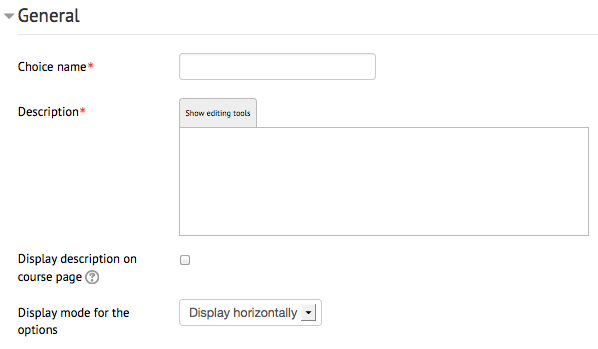
choice general

Choice name - Give the activity a name. This will display on the course page and at the top of the page when viewing the activity.

Description - This is a good place to put the question you are asking the students to answer.

Display description on course page - If enabled, the description above will be displayed on the course page just below the link to the activity or resource.

Display mode for the options

  • Display horizontally - will display the possible selections/answers listed horizontally across the page
  • Display vertically - will display the possible selections/answers listed vertically on the page

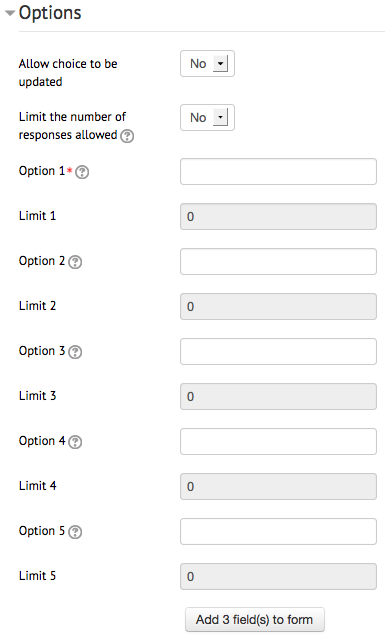
choice options

Allow choice to be updated - Allows the student to change their mind/choice even after they have answered.

Limit the number of responses allowed - This lets you put a limit on each option. For example, you can get students to arrange themselves into groups of 4 using the choice activity, so you would limit each option to 4 users. Once 4 users have chosen that option, no more can choose it, they must choose another. If this is left on No, then the "Limit" fields remain disabled.

Options - At least one option must be given. Any fields left blank will not be included.

Limits - If you set "limit the number of responses" to Yes, then these fields will become enabled and you can choose how many students/users can choose each option.

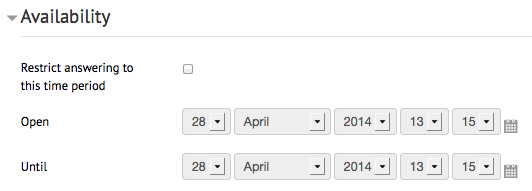
choice availability

Restrict answering to this time period - By checking this box, you can select a time during which students can use the activity and make their choices. After the time is closed, students can still view the activity and choices they made, but can no longer make changes or new choices.

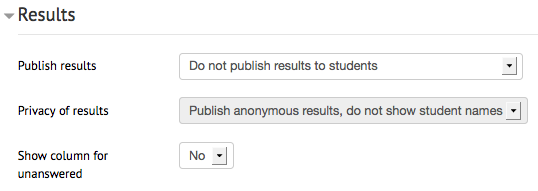
choice results

Publish results

  • Do not publish results to students - Students never see responses, only teachers see responses
  • Show results to students after they answer - Responses are hidden from student until they have made their own choice
  • Show results to students only after choice is closed - Only use this option if you have set the availability start and end date, otherwise it won't work.
  • Always show results to students - Students see other responses even if they haven't answered themselves.

Privacy of results

  • Publish anonymous results, do not show student names - This produces a simple bar graph of responses with no names.
  • Publish full results, showing names and their choices - This produces a chart showing which students have responded to which choice.

NOTE - teachers always see which students have answered which choice, no matter the settings above.
» Guide to Moodle

Contact site support
You are currently using guest access (Log in)
Data retention summary
Powered by Moodle